
Running Flows
The Runs screen is where work actually happens: you start a flow against your inventory, watch it execute live, and read the results afterwards. The sidebar badge next to Runs counts runs that are currently active.
Start a run
Open Runs and click New Run (if the button is locked, your role lacks run-creation permission in this organization).
In Flow information, pick a flow by Name. The picker is searchable and lists pinned flows first, each with its version and description. This section holds only the flow and its version. Only committed flow versions can run - if the picker says Commit this flow before starting a run, open the flow in the editor and commit it first.
Pick a Version. One must be chosen before the run can start, and a flow you pick by hand never has one chosen for you: several committed versions are a decision. Switching versions clears any parameter values you already entered. Once a version with a form has loaded, Flow information folds away behind a one-line summary (Flow name · vN) so the form is in view; click its header to reopen it. Flows without a form keep the section open. Arriving through a Run button already answers both questions, so the page fills them in and Flow information starts folded: the flow's own Run button means its newest committed version, and Run this version means the one you clicked. Wherever a version is named - the dropdown and the folded summary - the newest committed one reads v3 (latest), so an older version is never mistaken for the current one.
Fill in Flow Parameters. This form is defined by the flow's author: required fields are marked with
*, and device-target fields open a picker where you can filter the inventory by site (optionally including child sites), inventory source, platform, vendor, and tags, then select devices individually or with Select all matching.The run name is generated for you and shown in the page header. Click the pencil next to it to rename the run before starting.
Click Start Run. You land on the run's detail page immediately.
To run the same thing on a schedule instead, create a schedule on the Triggers screen (Schedules tab) - see the schedules guide. Runs can also be started by webhooks, managed on the same screen.
Find runs
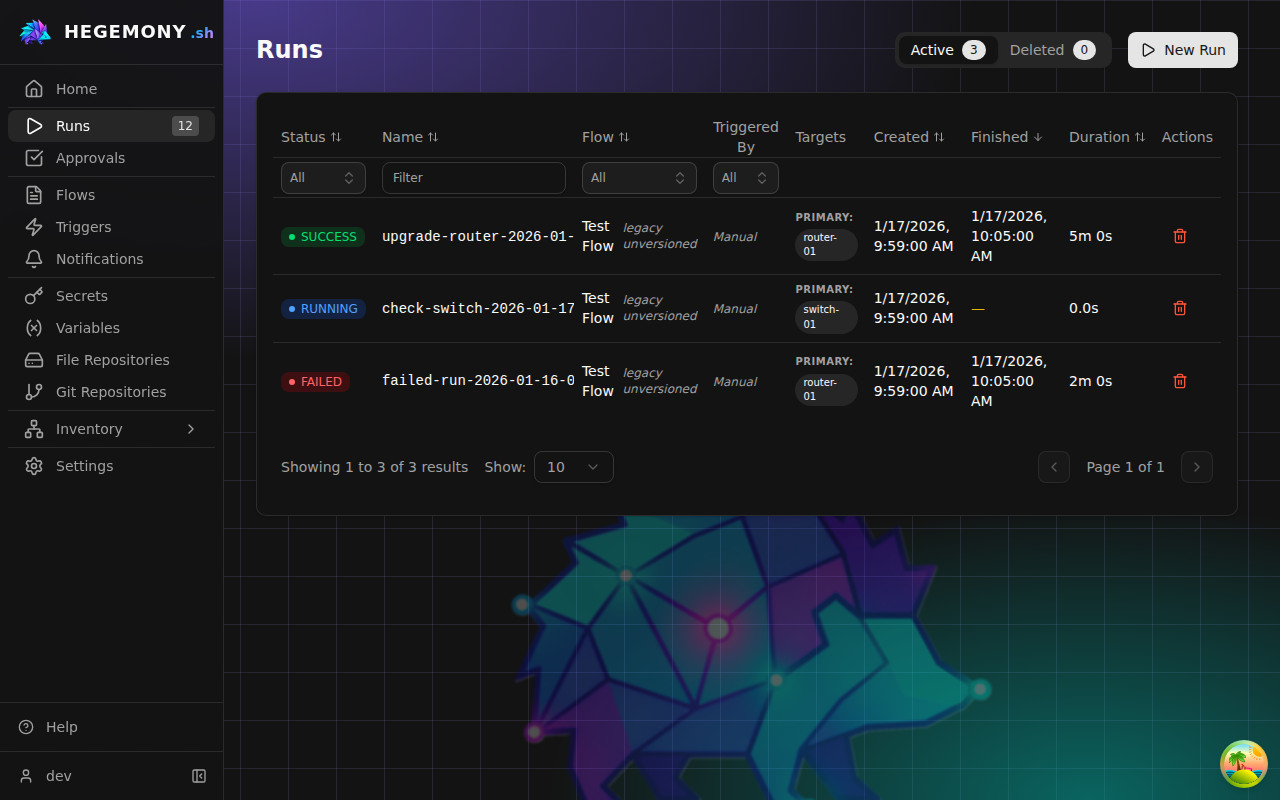
The run list filters on status, name, flow, and trigger kind. Filters, sort order, page, and the active tab are all held in the address bar, so a filtered list can be bookmarked or pasted to a colleague and it opens the same way for them.
Links from the Home dashboard use this: each run tile opens the list filtered to exactly what the tile counted. Two of those bounds have no column to hang a filter widget on, so they appear above the table as chips that can be cleared on their own without losing the other filters:
- a trailing window on completion time (
since=24h), used by tiles that count a window such as failures in the last 24 hours; and - the actor who started the run (
by=<username>), used by the personal counts under Waiting on You.
An unfiltered list keeps a clean /runs URL - defaults are never written into the query string.
Read a run
The run detail page shows the flow name and version, what triggered the run (a user, a schedule, a webhook, or a parent flow), targets, timing, and five tabs:
- Graph - the flow diagram with each step colored by its execution state (pending, running, success, failed, skipped, cancelled, waiting). Click a step to open its detail panel. Execution is what the run did: status, duration, worker, the tags the step carried when it ran, result data, error text, execution history for steps that ran more than once, and that step's live output. Configuration is what the step was told to do - the same fields the flow editor shows, read from the graph snapshot this run executed rather than from the flow as it stands today, so a failure can be read next to the settings that produced it however the flow has changed since. A step that never ran opens straight into its configuration.
- Logs - the merged, timestamped output stream of all steps. Filter by step or device, toggle stdout/stderr, timestamps, and line wrapping, and use Copy to grab the full log.
- Events - a milestone feed (step started/finished, decisions taken) without the raw container output.
- Artifacts - files and outputs collected by steps. Expand text artifacts in place, download individual files, or use the ZIP icon to download everything at once. Comparison artifacts show a diff with a Match/Mismatch verdict. Each row carries a phase chip taken from the producing step's
phasetag, and no chip at all when that step has none. - Monitors - live charts for connectivity monitors attached to the run, with per-target statistics and a CSV export. See the connectivity monitor guide.
Runs stream their output live while the page is open - a green dot in the log toolbar means the stream is connected.
Platform administrators also get a Show Temporal identifiers toggle in the run header, revealing the workflow ID and Temporal run ID with copy buttons. They are correlation values for the workflow engine: paste them into tctl, or into the Temporal console on the rare occasion an administrator opens it. The page does not link to that console - it authenticates nobody and is scoped to no organization, so it stays closed and is opened deliberately from the host. See Temporal Admin Access.
Control a running run
While a run is active you can Pause it (if background monitors are running you will be asked whether to pause them too), Resume it, or Cancel it from the header. A paused run shows a banner with the pause message and, when the pause step defines one, a countdown until it resumes automatically. Each pause and resume appears in the Events tab with the name of the person who did it.
If a step requests human sign-off, the run enters waiting for approval and an amber card appears with a Review button - see the approvals guide.
Run again
Finished runs have a Re-run button that opens the New Run form pre-filled with the same flow version, parameters, and device targets, so you can adjust and start again in seconds. A run recorded without a version reruns with the flow filled in and the version left to you - it is not assumed to have been the newest.
Delete and restore
Deleting a run from the list is reversible: it moves to the Deleted tab, where you can restore it or permanently delete it. Permanent deletion cannot be undone.
Statuses
| Status | Meaning |
|---|---|
PENDING | Queued, waiting for a worker to pick it up. |
RUNNING | Executing right now. |
PAUSED | Suspended by a pause step or by a user; resume from the banner. |
WAITING_APPROVAL | Blocked until someone approves or rejects. |
SUCCESS | Finished, every step succeeded. |
FAILED | Finished with a failed step; the header shows the error. |
CANCELLED | Stopped by a user before finishing. |