
Approvals
Flows can include approval steps that pause a run until a human signs off. The Approvals screen is the inbox for those requests: the Pending tab lists everything waiting for a decision, and All Approvals keeps the history. The sidebar badge next to Approvals counts pending requests.
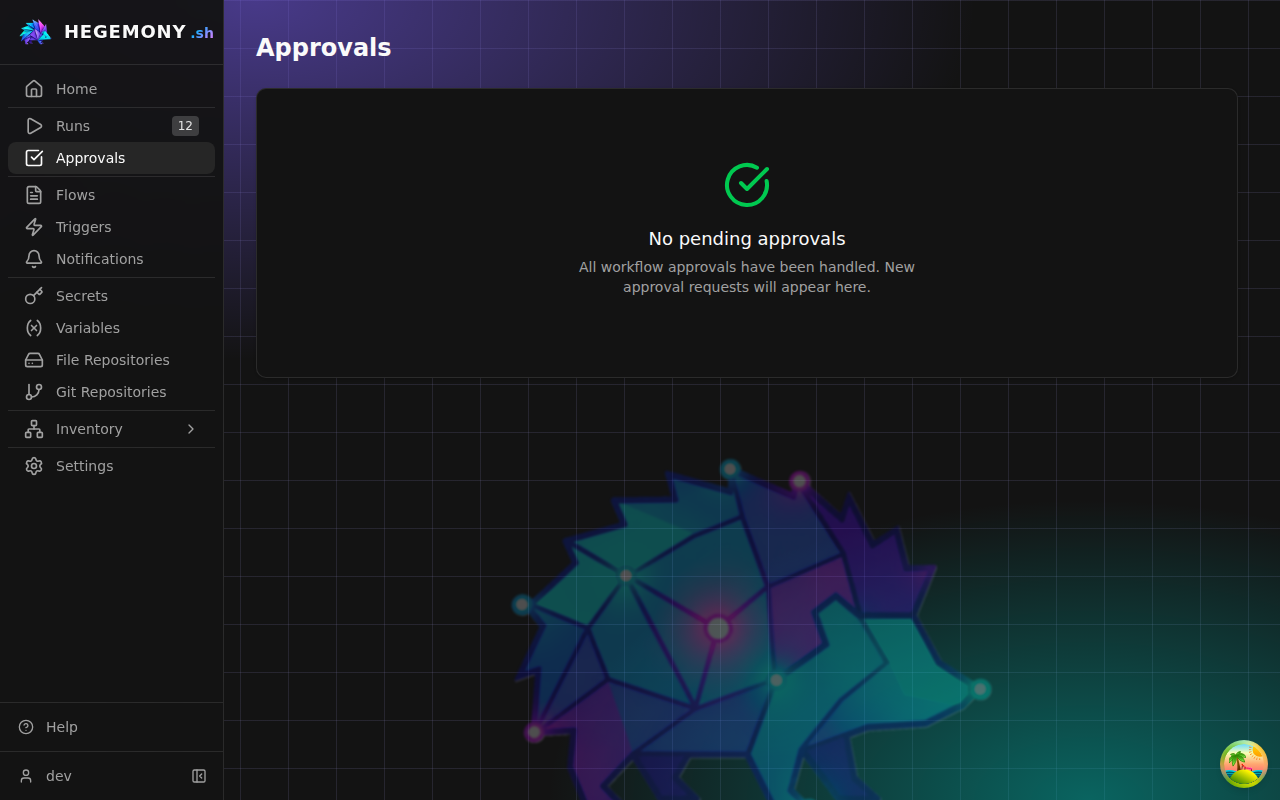
Decide a request
- Open Approvals and find the request on the Pending tab. The Timeout column shows how long is left before the request expires; it turns red below ten minutes.
- Click Review (or the row) to open the request. You see the message the flow author wrote, the run it belongs to, and the time remaining.
- Optionally add a comment - it is stored with the decision and shown to anyone who looks at the approval later.
- Click Approve to let the run continue, or Reject to stop it.
Deciding requires an approver or admin role in the run's organization; the dialog tells you if your role is not enough. If someone else decided first, you get a conflict telling you the approval is no longer pending, with its current status.
You can also decide directly from the run's detail page - runs waiting for sign-off show an amber Pending Approval card with the same Review button.
Show what is being approved
An approval step's title and message may use templates, rendered when the request is created, so the approver sees the facts instead of a generic prompt. For example, before a tf.apply step:
Apply {{ inputs.service_name }}? {{ steps.plan.output.summary }}Templates see the same values branch conditions do: steps.<id>.output, inputs, vars, run.vars, targets, and the run and flow names. They cannot read secrets, and a secret a step used shows as [redacted] in its output.
A template never blocks the approval:
- A template that does not render (a typo, a missing value) keeps its text. The worker logs the error with the run and step, and the request keeps it in its metadata as
render_error. - A title that renders empty keeps its template text; an empty title becomes "Approval required:" followed by the step name.
- If a template reads step outputs or variables that the API could not serve, creating the request is retried (three attempts in all). If the last attempt still cannot load them, the request is created anyway and the message ends with a note saying so, since the text may then show templates as written or miss values.
Titles are cut to 255 characters. A message written with templates is cut to 4096 characters, ending in an ellipsis; a message without templates is kept as written.
What happens after a decision
- Approve - the run resumes from the approval step.
- Reject - the run stops and is marked failed.
- No decision before the timeout - the request expires; expired requests appear in All Approvals with status Expired.
The decision, the decider, the comment, and the timestamp are all recorded: open All Approvals and click Details on any row to see them.
Getting notified
Approval requests can send notifications (email, chat, and other channels) when they are created. Destinations and templates are configured on the Notifications screen - see the notifications guide. Inside the app, the sidebar badge is the live indicator.
Statuses
| Status | Meaning |
|---|---|
| Pending | Waiting for a decision. |
| Approved | Someone approved; the run continued. |
| Rejected | Someone rejected; the run stopped. |
| Expired | Nobody decided before the timeout. |
| Cancelled | The run was cancelled while the request was open. |